Showing posts with label How-To. Show all posts
Showing posts with label How-To. Show all posts
PC TV Programs – Watch TV Programs on PC
Saturday, 13 August 2011 02:49
This article describes the possibilities of PC TV, which simply means to watch tv on the pc using PC TV programs. Have you encountered a situation like the following before? Great the next match of my favorite sports team will not be shown on free tv. Actually it will not be shown at all in my country, except for satellite of course. If you encounter situations like this one and always thought there would be no other solution than to watch boring live tickers on internet sites, then you have come to the right place that brings you the solution called PC TV.
I will describe three freeware programs that let you connect to channels that stream tv and especially live sports events. This includes all major european football (soccer) leagues, champions league, uefa cup, espn, wrestling, national team matches, boxing matches aso.
You also find regular tv stations like mtv and custom stations like gamers tv there. On with the PC TV programs.
 |
PC TV
All you need to watch pc tv is a computer with the latest windows media player and / or real player. A broadband connection is desired for best results. All three PC TV programs to watch TV on the PC have been produced in Asia making it hard to read the websites. Those websites offer tv program lists among other information.
First, let us take a look at some options in media player and real player:
Start the media player, make sure you use the latest version. Right-Click and select Options from the menu. Click on Performance and Change the Buffer Size of Content to 30 seconds.
In real player you select Tools -> Preferences and click on the General -> Playback Settings. The setting Buffer up to 30 seconds is at the bottom of this window.
mms:// and .asx open with windows media player
rtsp:// and .rm / .ram open with real player
rtsp:// and .rm / .ram open with real player
Starting Streams manually:
Sometimes you need to start streams manually. Use the stream formats information to figure out the program to use.On windows media player choose File -> Open Url or the shortcut ctrl + u
On real player choose File -> Open
PC TV Programs
This is a list of free PC TV programs that can be used to view TV on PC.
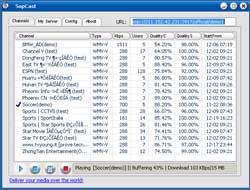
Download from the above link, unzip, start. A channel list will be displayed. Double-click a channel and windows media player should start and begin buffering and displaying.

Just download and run the installation script on pplive. Its all in English, no need to worry. You need the pplive channel list for it, it does not come with a loaded list.

Download from the above location. This one has an installation script that is unfortunately producing lots of gibberish. The buttons are designed like in every other windows installation script. (left button, choose a directory, 3x middle button). The Channel list is on the left, you see the channel name, the quality of the stream in Kb per second and the users connected to the channel.
If I had to choose one of them I?d defiantly choose ppStream which has the best interface and good user rates and a nice overall stream quality.
| channel | content | language |
| CCTV5 | european soccer, other sport events. | Asian ? |
| ESPN | All major us leagues, european soccer + more | English |
| Games Tv (ppstream) | professional game play, tournaments, mags | Asian ? |
| Soccer Demo | soccer | Asian ? |
| Sport Italia | Italian Sports Channel | Italians |
Additional Information:
Using PC TV programs on your computer has never been easier than in today’s Internet. Users can pick a wide variety of applications that bring

How to Connect Google Calendar to Your Cell Phone
Wednesday, 3 August 2011 03:02
Since you're not always sitting in front of a computer, being able to access your calendar only when you're at a computer isn't all that useful. Imagine that you parked your car in the morning, but you have to move it by 5 p.m. to make way for street cleaning or you'll get a ticket. It's easy to forget to add an item like "Move my car by 5pm" to your calendar if you have to wait until you get to a computer to add it. The solution to this problem: Hook your phone into your calendar.
There are a couple of ways to add Google Calendar to your cell phone, whether you own a cutting-edge smartphone or a bare-bones "dumb" phone.
Sync With Smartphones. If you use an Android phone, this is a no-brainer. Android works seamlessly with GCal; you merely log in to your Google account on your Android device, and it will automatically set up your phone's calendar to sync with GCal. Any events you add from your phone will automatically sync with Google Calendar wirelessly.
If you have an iPhone, BlackBerry, Nokia S60, or Windows Mobile phone, syncing your phone's calendar with GCal is similarly easy when you use the free Google Mobile Sync tool for your particular phone. Head over to the Google Sync page and follow the setup instructions for your device.
Check Your Calendar and Add Events Via SMS.
Don't have a fancy smartphone? No problem. You can still receive event notifications, check your calendar, and even add events to your calendar from any phone that supports SMS messages.
First, head into your GCal settings and associate your cellphone with GCal.
Select Settings, Calendar Settings, Mobile Setup, and follow Google's instructions for validating your phone. Once you validate your phone number, GCal can send you event notifications via e-mail or SMS.
You can even add an SMS reminder as one of your default notification methods, in which case you'll always receive notifications for upcoming events, regardless of where you are, as long as you have your phone on hand.
After you've associated your cell phone's number with your Google Calendar account, you can check your itinerary and create new events by sending text messages to Google Calendar's GVENT (48368) number. Want today's schedule? Just text "day" to GVENT.
Even better: You can create new events by texting GVENT, and it supports the same plain-language input that GCal's Quick Add button does. So if you text GVENT "Move my car at 4:30pm," GCal will translate that into a new event on your calendar. For complete details on GVENT commands, check out this Google Calendar help page.
There are a couple of ways to add Google Calendar to your cell phone, whether you own a cutting-edge smartphone or a bare-bones "dumb" phone.
Sync With Smartphones. If you use an Android phone, this is a no-brainer. Android works seamlessly with GCal; you merely log in to your Google account on your Android device, and it will automatically set up your phone's calendar to sync with GCal. Any events you add from your phone will automatically sync with Google Calendar wirelessly.
If you have an iPhone, BlackBerry, Nokia S60, or Windows Mobile phone, syncing your phone's calendar with GCal is similarly easy when you use the free Google Mobile Sync tool for your particular phone. Head over to the Google Sync page and follow the setup instructions for your device.
Check Your Calendar and Add Events Via SMS.
Don't have a fancy smartphone? No problem. You can still receive event notifications, check your calendar, and even add events to your calendar from any phone that supports SMS messages.
First, head into your GCal settings and associate your cellphone with GCal.
Select Settings, Calendar Settings, Mobile Setup, and follow Google's instructions for validating your phone. Once you validate your phone number, GCal can send you event notifications via e-mail or SMS.
You can even add an SMS reminder as one of your default notification methods, in which case you'll always receive notifications for upcoming events, regardless of where you are, as long as you have your phone on hand.
After you've associated your cell phone's number with your Google Calendar account, you can check your itinerary and create new events by sending text messages to Google Calendar's GVENT (48368) number. Want today's schedule? Just text "day" to GVENT.
Even better: You can create new events by texting GVENT, and it supports the same plain-language input that GCal's Quick Add button does. So if you text GVENT "Move my car at 4:30pm," GCal will translate that into a new event on your calendar. For complete details on GVENT commands, check out this Google Calendar help page.
Free Web Proxy List, Custom Proxy Server Guide
Wednesday, 13 August 2008 02:54
A web proxy is becoming more and more important in today’s internet. Schools and companies tend to block sites pretty quickly nowadays.It is especially irritating when the ban is directed towards just a few websites and not every website in that category. A Web Proxy might be able to sneak past this policies and display the site in your browser even though it is banned in the network.
How does a web proxy work ?
A network bans a website either by its IP, its name or part of its name. A web proxy makes only shows its own address to the network and not the actual destination of the user. The admin of the network will think everything is fine and you are free to reach the site that is banned. The only thing that might happen is that the admin is banning the web proxy as well, but this is not a big deal either. Hundreds of web proxies exist, just switch to a new one and you are ready to visit the banned site again.Setup your own Web Proxy Server:
Let us assume that all proxy websites have been banned in your network, you can´t find a single web proxy that is still working. Your best choice is to create your own web proxy at an address that only you know. All you need is the php web proxy proxy and some webspace with php to upload it to. Search Google for free webspace php and you should find some hosts that allow you to use php and upload your web proxy to them.
You can alternatively use a cgi web proxy which needs a webspace with cgi enabled.
Web Proxy List:
It is most likely that the name “proxy” might have been banned as well, try using web proxies that do not have proxy i their url, this might help.
Free Web Proxy List
- 75i
- Anonymouse
- Back Fox
- Browse at School
- Bypass browser
- Cecid
- Cgi Proxy
- Conceal Me
- Dark Proxy
- Dave Proxy
- Dejacey
- Direct Proxy
- Dtunnel
- Dzzt
- Famous 5
- Fly Proxy
- Free Proxy
- Free Proxy Server
- Fsurf
- Ghost Click
- Hide and go surf
- Hide your Info
- Hujiko
- Iam new guy
- Idoxy
- Let me By
- Lin Fox
- Mr. Proxy
- Neo Proxy
- Net Sack
- Peoples Proxy
- Pr0xy
- Proxy 77
- Proxy Anon
- Proxy Hero
- Proxy Lord
- Proxy Mod
- Proxy Prince
- Proxy Snow
- Proxy Surf
- Proxytastic
- Prxxy
- Pure Privacy
- Radio Farda
- Safe for Work
- Safe Hazard
- Safe Surfer
- School Bypasser
- SD9
- Secret Browse
- Smart Proxy
- Student Proxy
- Stupid Censorship
- Surf Anon
- Surf Nameless
- The web tunnel
- TNT Proxy
- Traceless
- Unblock This
- Unbloxy
- Unipeak
- Url Encoded
- Virtual Browser
- VPN Tunnel
- Wkccp
- World Wide Proxy
- Wootage
- Work Browse
- World Want
- XXX Proxy
- Your Proxy
If none of the above work in your special case try my last resort, blockstop. It utilities the coral cdn network and uses a different method to access sites.
Sites that update their web proxy lists daily:
http://proxy.org/http://www.centurian.org/
http://www.azproxies.com/
http://www.publicproxyservers.com/
If you think a proxy server is missing in the list let us know in the comments.
Subscribe to:
Posts (Atom)